
You can transfer contacts from an Android phone to a Gmail account by turning on Google contact sync, moving contacts from phone storage to your Google account, or importing a contacts file. Google sync is the easiest option for most Android users because your contacts can appear on other devices after you sign in with the same Gmail account.
Transfer Contacts From Android To Gmail Through Google Sync
Google Contacts sync can save your phone contacts to your Gmail account. This method works well for users who want automatic backup and access to contacts from another phone.
Follow these steps:
- Open Settings on your Android phone.
- Tap Google.
- Select All services or Settings for Google apps, based on your Android version.
- Tap Google Contacts sync.
- Open Status.
- Turn on Automatically sync.
- Give the phone a little time to upload the contacts.
- Sign in to the same Gmail account on another device to access the synced contacts.
Menu names can differ between Samsung, Xiaomi, Redmi, Oppo, Vivo, Realme, Tecno, Infinix, and other Android phones.
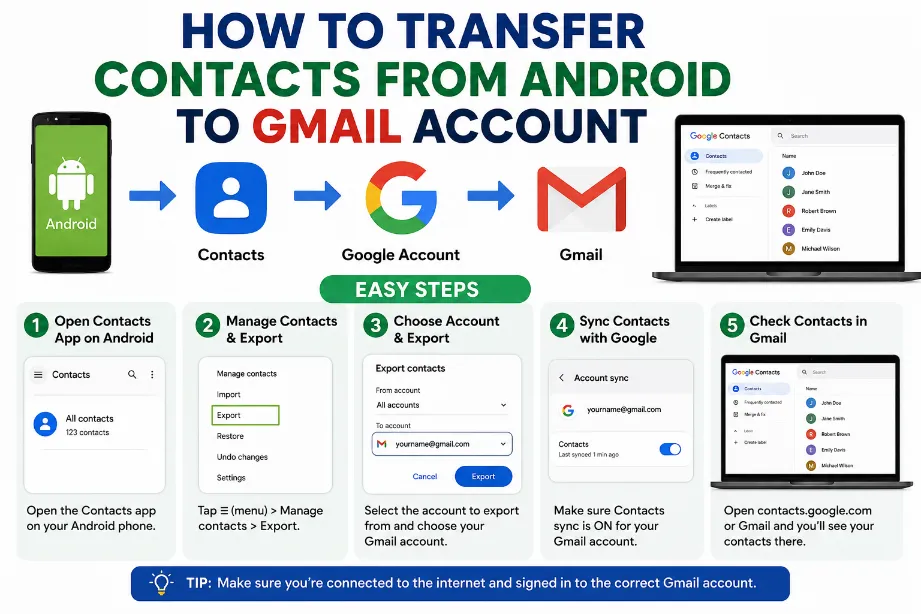
Move Phone Contacts To Your Google Account
Some Android phones save new contacts under Phone, Device, or SIM instead of your Google account. You can move these contacts to Google from the Contacts app.
Try this method:
- Open the Contacts app.
- Tap the menu icon or Manage contacts.
- Select Move contacts or Move contacts to another account.
- Choose contacts saved on your phone.
- Select your Gmail/Google account as the destination.
- Confirm the transfer.
After the move, Google can sync those contacts with your account.
Transfer Contacts From Android To Gmail Using Google Contacts
The Google Contacts app can also help manage contacts stored on your phone.
- Open the Contacts app.
- Tap your profile picture or account option.
- Select your Google account.
- Look for contacts stored under Device or Phone.
- Select the contacts you want to move.
- Choose Move to another account.
- Select your Gmail account.
- Confirm the action.
This option can be useful for a large contact list because you can select several contacts together.
Export Android Contacts As a VCF File
A VCF file gives you another way to transfer contacts. You can export contacts from your Android phone and later import the file into Google Contacts.
Steps may look like this:
- Open Contacts.
- Tap Fix & manage, Manage contacts, or a similar option.
- Select Export to file.
- Choose the contacts you want to export.
- Save the file in VCF format.
- Transfer the VCF file to a computer or keep it on your phone.
- Open Google Contacts.
- Select Import.
- Choose the VCF file.
- Select your Google account and complete the import.
Transfer Contacts From Android To Gmail Without A Computer
You can also transfer contacts using only your Android phone.
| Method | Computer Required | Best For |
|---|---|---|
| Google Contact Sync | No | Automatic backup |
| Move to Google Account | No | Phone contacts |
| VCF Export | No | Manual transfer |
| Google Contacts Import | No | VCF files |
| Computer + VCF | Yes | Large contact backups |
For most users, Google Contact Sync provides the simplest route.
How To Check If Android Contacts Reached Gmail
After syncing, you can check your Google Contacts account.
- Open a browser on your phone or computer.
- Sign in with the same Google account used on your Android phone.
- Open Google Contacts.
- Search for a few contact names.
- Check phone numbers and other saved details.
You can also install the Google Contacts app and select the correct Google account.
How To Transfer SIM Contacts To Gmail
SIM contacts may remain separate from your Google contacts. You can import them through the Contacts app.
A common process is:
- Open Contacts.
- Go to Manage contacts.
- Select Import or export contacts.
- Tap Import from SIM card.
- Select the contacts.
- Choose your Google account as the destination.
- Confirm the import.
The exact menu can vary by phone manufacturer and Android version.
How To Transfer Contacts From Samsung To Gmail
Samsung phones provide contact management options through the Samsung Contacts app.
Try these steps:
- Open Contacts.
- Tap the three-line menu.
- Select Manage contacts.
- Tap Move contacts.
- Select Phone as the source.
- Choose your Google account.
- Select the contacts.
- Tap Move.
After the transfer, Google sync can upload the contacts to your account.
How To Transfer Contacts From Xiaomi Or Redmi To Gmail
Xiaomi and Redmi phones can store contacts under different accounts. Check the contact storage location before transferring them.
- Open Contacts.
- Go to contact settings.
- Look for Import/Export contacts or Manage contacts.
- Select phone or SIM contacts.
- Move or import them into your Google account.
- Turn on Google Contacts sync.
What Happens After Contacts Sync With Gmail?
Once contacts reach your Google account, they can sync across Android devices using the same account.
You can access them for:
- Phone calls
- Text messages
- Contact backup
- New Android phone setup
- Contact management
- Restoring contacts after a phone change
Google also keeps contact information linked to your account rather than only storing it on one handset.
Problems With Android Contacts Not Syncing To Gmail
Several settings can prevent contacts from appearing in Google Contacts.
Check these areas:
- Confirm that the correct Google account is selected.
- Turn on Google Contacts sync.
- Check your internet connection.
- Open Contacts and refresh the list.
- Check the contact’s storage location.
- Make sure the contacts are saved under Google rather than Device or SIM.
- Update the Google Contacts app.
- Restart the phone and check again.
A contact saved only in phone storage will not automatically appear in your Google account until you move or copy it to Google.
How To Avoid Duplicate Contacts
Moving contacts more than once can create duplicate entries. Before importing a VCF file, check your Google Contacts list.
Helpful steps:
- Open Google Contacts.
- Sign in to the correct account.
- Review existing contacts.
- Use the duplicate management option if duplicate entries appear.
- Remove unnecessary copies after checking the phone numbers.
Android To Gmail Contacts Transfer Checklist
Use this checklist before finishing the transfer:
- Google account is added to the Android phone.
- Google Contacts sync is active.
- Phone contacts have been moved to Google.
- SIM contacts have been imported.
- Google Contacts shows the transferred entries.
- Important phone numbers are present.
- Duplicate entries have been checked.
- The same Gmail account is available on the new device.
Final Words
The easiest way to transfer contacts from Android to Gmail is to use Google Contacts sync or move phone contacts directly into your Google account. A VCF file works well for manual backups and large contact transfers. After the transfer, check Google Contacts to confirm that your names, numbers, and other contact details are available.